
Pay Your Bills
Easily make payments for utilities and bills to companies, or to a person, like your landlord. Once it’s set up in your account, enable reminders so you never miss a payment!
Free Online Bill Pay
Serve® makes it simple to organize your bills and pay them when they’re due. If you juggle rent or a mortgage, utility bills and more, online bill pay can save you time and keep you on track.

Here's how to set up a new bill to pay online:
-
Log in
Log in to your account from your preferred device and go to Money Out, then select Bill Pay.
-
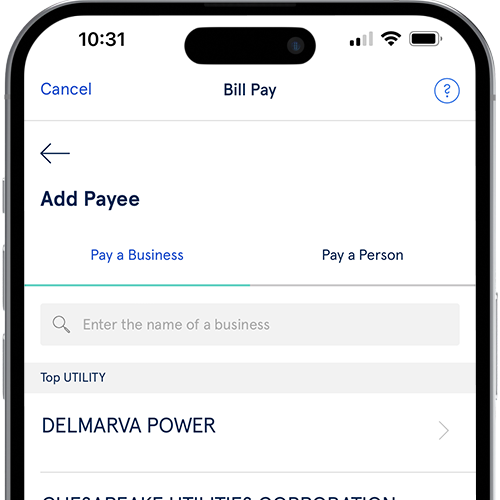
Add Payee
Select either Pay a Business and choose from the list, or Pay a Person and enter the requested information.
-
Pay your bill
Click or tap the name of the business or person you just added, enter the amount you wish to pay, and select Pay.
FAQs
-
It’s easy to use your Serve account to pay individuals or merchants located in the United States, such as your cell phone provider, your landlord, or your utility company.
For the Serve® Bank Account & Serve® Pay As You Go Visa® Prepaid Card, you must have verified your email in order to use the Bill Pay feature.
For Serve® American Express® Prepaid Debit Accounts, you must have activated your personalized Serve card and verified your email in order to use the Bill Pay feature.
If this is your first time paying a bill from your Serve account, follow these steps to add a payee and pay your bill:
Log in to your Serve account.
Go to Money Out and then select Bill Pay.
Select Pay a Bill and then click or tap Add Payee.
To pay a business, select Pay a Business. You can scroll through the list of top billers or enter the business name to search for your payee. Then fill out the requested information and select Add Payee.
If you are paying a person, select Pay a Person to add a new contact to pay and click or tap Add Payee. Enter the requested information and select Add Payee.
Finally, click or tap the name of the business or person you just added, enter the amount you wish to pay and select Pay.
To pay a bill you’ve paid before, please follow the steps below:
Log in to your Serve account.
Go to Money Out and then select Bill Pay.
Select Pay a Bill and then click or tap the payee you wish to pay.
Enter the amount you wish to pay and select Pay.
We'll take care of the rest and send you an email notification each time you make a bill payment or if your payment is returned.
-
Timing depends on the type of payee. If you pay a payee from our list of pre-registered businesses (“registered payee”), payment will be sent electronically, and it will take two business days. If the payee is not a “registered payee,” where we mail them a check for you, it will normally take about five business days.
For the Serve® Bank Account & Serve® Pay As You Go Visa® Prepaid Card, please see the applicable Agreement at serve.com/legal for details.
For Serve® American Express® Prepaid Debit Accounts, Serve offers a Pay Bills Guarantee1 as long as the payment is requested at least 6 days prior to the bill’s due date. We will bear responsibility for late payment-related charges (up to a maximum of $50 per transaction) should a Bill Pay payment arrive after its due date. Additional terms apply. Please see the appropriate Serve Consumer User Agreement at serve.com/legal for details.
-
If your biller accepts card payments, you can visit the biller's website and use your Serve card to pay your bill. Be sure to only use your personalized Serve card (not your temporary Serve card or virtual temporary card) for any recurring payments such as memberships or subscriptions.
-
After you’ve submitted your payment, you can check the status of your bill payment by logging into your Serve account and clicking or tapping on View all transactions from your main account. Select the payment to see the status.
If you wish to edit or cancel a pending payment, you can only do so prior to your payee's Cut-Off time on the date that you submitted your bill payment request. To edit or cancel a bill payment, log into your Serve account and click or tap on View transactions from your main account. Select the payment you wish to change and select the appropriate button to stop or edit the payment, if those options are still available. After the Cut-Off time, you may still be able to stop payment on bills paid via check by calling Customer Service, but you cannot stop bill payments sent electronically.
-
No, subaccount users do not have access to the Bill Pay feature.
-
Yes, you can set up a Bill Pay reminder for each of your payees.
Log in to your Serve account.
Go to Money Out then select Bill Pay and Pay a Bill.
Find the payee for which you want to create a reminder and click or tap on the information icon to the right of the biller's name.
Select Bill Reminder and set the frequency and start date for the reminders to begin.
Select Save Reminder.
Follow these steps to view saved reminders:
Log in to your Serve account.
Go to Money Out then select Bill Pay and View Activity.
Select Upcoming Bills to review any bills that are due soon.
Note: Bills set up with reminders will not be paid automatically. To pay a bill for which you received a reminder:
Log in to your Serve Account.
Go to Money Out then select Bill Pay and View Activity.
Click or tap on the biller you wish to pay.
Enter the amount you wish to pay and select Pay to pay the bill.
For Serve® American Express® Prepaid Debit Accounts, in order to be protected by our Pay Bills Guarantee1, you must pay your bill at least 6 business days before your bill is due.
-
No. Your Serve Account and Routing numbers can only be used to receive direct deposits (such as your paycheck, government benefits or tax refund).