
Mobile App
Manage your account on the go with the Serve mobile app.1
Banking at your fingertips
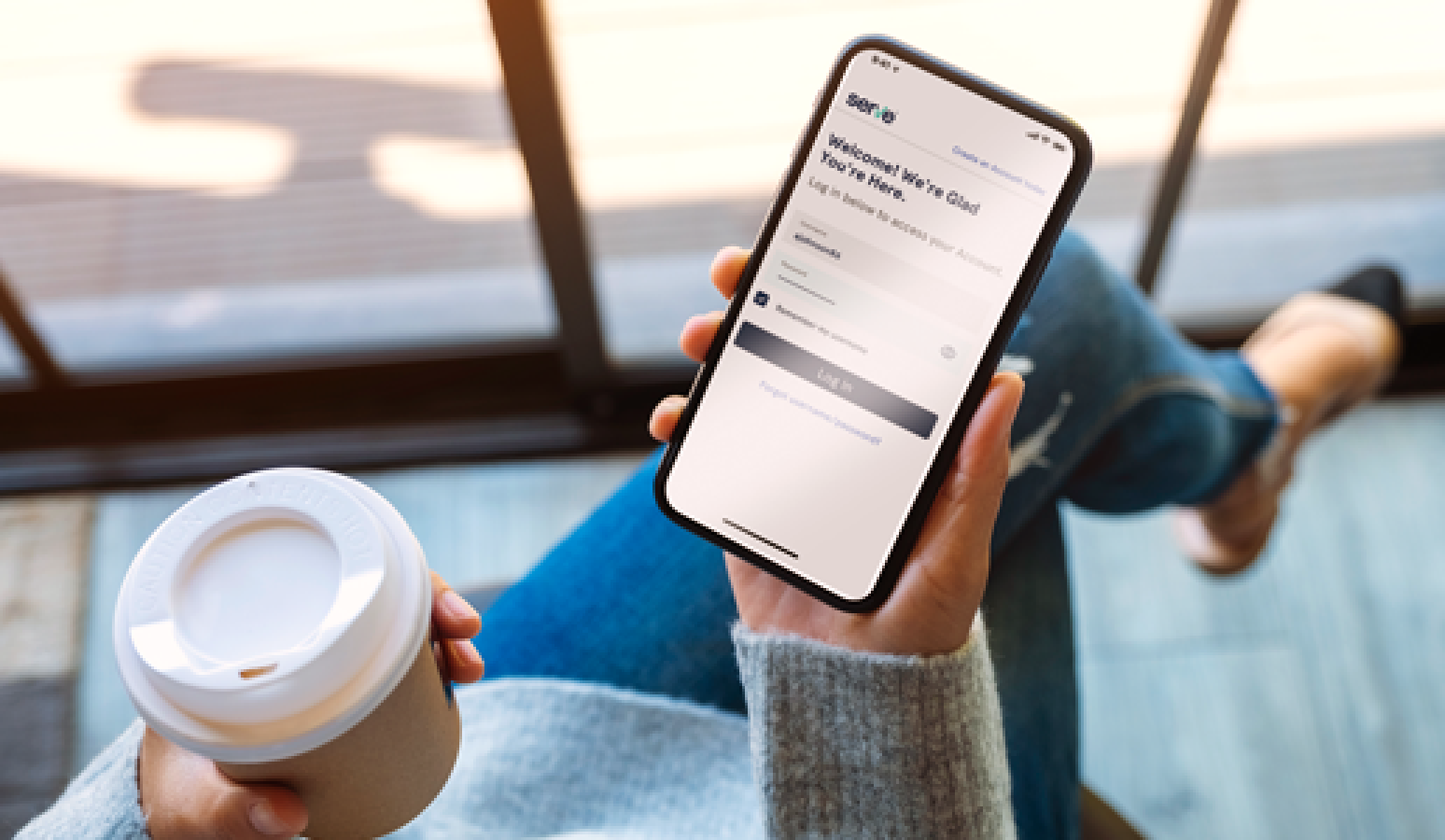
Manage your account when you need, from where you are, with the Serve app. Quickly check your balance, view transactions, deposit checks, and much more.


With the Serve mobile app you can:
Set up text alerts1
Stay on top of your account with low balance alerts or regularly scheduled balance updates.

Send money
Quickly & easily transfer funds to other Serve accountholders without a fee.

Set up & manage goals
Seamlessly move money from your main account into a goal & save for something special.
FAQs
-
You can receive text message and/or email alerts to stay informed about your Serve account activity. You can receive alerts about the following:
Main Account Low Balance Alert – receive a notification when your balance drops below a threshold that you set.
Subaccount Low Balance Alert – receive a notification when the balance in your Subaccount drops below a threshold that you set.
Money Added – receive a message when money is added to your account. This includes money that is added electronically such as a direct deposit or a federal tax refund.
Available Balance – receive a regularly scheduled notification with your Available Balance. You can choose the frequency of how you want to receive this alert, whether it’s every day, every week, every two weeks or every month. You can also select a start date and end date.
-
Text commands are an easy way to stay informed about your Serve account using your mobile device.1 Different from the text and email alerts listed above, text commands are a request for quick information sent via your mobile device. With text commands, you can send us a text with a pre-defined command and we’ll respond with the requested information. See list of available commands below. To start receiving text alerts, you must first ensure that your mobile phone number associated with your account is verified. To set up text commands, follow the steps below:
Log in to your Serve account and go to My Profile.
Select Phone Number, located under the Contact Information section.
Confirm that the phone listed is the correct number.
Check the box located under your mobile phone number and select Update.
You will then be prompted to enter a 6-digit verification code that will be sent to your mobile device. Enter the code and select Verify and Finalize.
You will receive a text confirmation right away. You are now ready to start using text alerts!
Text1 the following list of commands to 73783:
Your current balance: BAL or BALANCE
History of transactions: HIST or HISTORY
Help with text notifications: HELP
Your Goals balance: GOALS
Download the Serve Mobile App1: APP
Message frequency varies by account and preferences. Please note: you can only opt in one mobile phone to receive text messages. You can text STOP to 73783 to cancel at any time.
-
Yes. Subaccount users can get account information on-demand by using text alerts.1 Subaccount users can send us a text with a pre-defined command and we’ll respond with the requested information. See list of available commands, below. To start receiving text alerts, Subaccount users must first ensure that the mobile phone number associated with their Subaccount is verified. To set up text commands, Subaccount users must follow the steps below:
Log in to their Serve Subaccount and go to My Profile.
Select Phone Number, located under the Contact Information section.
Confirm that the phone listed is the correct number.
Check the box located under your mobile phone number and select Update.
The Subaccount user will then be prompted to enter a 6-digit verification code that will be sent to their mobile device. They enter the code and select Verify and Finalize.
The Subaccount user will receive a text confirmation right away. They are now ready to start using text alerts!
Subaccount users may text the following list of commands to 737831:
Their current balance: BAL or BALANCE
History of transactions: HIST or HISTORY
Help with text notifications: HELP
Download the Serve Mobile App1: APP
Message frequency varies by account and preferences. Please note: subaccount users can only opt in one mobile phone to receive text messages. Subaccount users can text STOP to 73783 to cancel at any time.
-
You can cancel the payment only if it has not been accepted. To cancel the payment, log into your Serve account and click or tap on ‘View transactions’ from your main account. Select the Send Money transaction and click or tap ‘Cancel.’
-
As a Serve accountholder, you may set up Goals, which can be used to put money towards a specific purpose ─ whether you are setting money aside for a family vacation, a large purchase, or even for a rainy day.
With Goals, you can transfer money from your main account Available Balance into the Goals. You can have up to six (6) Goals. When you're ready to spend the funds in a Goal, simply transfer the funds back into your Available Balance. Moving funds in and out is simple and can be done anytime you want.
-
It’s easy to get started with Goals! To create a new Goal, simply follow the steps below. Remember you can have up to six (6) Goals.
1. Log in to your Serve account.
2. Go to Money In and select Goals and then Add Goal.
3. Enter the name of your Goal. You can also enter how much you want to set aside and a due date for your Goal if you wish.
4. Select Save a new Goal to create your new goal.
5. Next, select Transfer In to add money to your Goal from your main account.
-
IMPORTANT: Money cannot be spent directly from a Goal. To spend money from a Goal, the money must first be transferred back to your main account Available Balance. There are no limits on the number of times you can transfer money from Goals to your Available Balance and there are no fees when you transfer money.
To transfer money from a Goal back to your main account, follow these steps:
1. Log in to your Serve account.
2. Go to Money In and select Transfer Money to Main Account. Or select the Goal from which you’d like to transfer money from the Home screen and select Transfer Out.
3. When you get to the Transfer money into main account screen, select the Goal from which you’d like to transfer money from the list. Enter the amount you’d like to transfer to your main account and select Transfer.
4. Your money will be added to your main account Available Balance right away. You will see a confirmation that the transfer has been completed, along with a transaction ID number for reference.
-
At this time, you cannot set up recurring transfers to a Goal.
Note: If you were previously enrolled in recurring transfers from your main account into a Goal, as of April 1, 2021 that functionality is unavailable. You may continue to make one-time transfers.
-
No, subaccount users cannot create Goals.
-
You can manage your text and email alert settings directly in My Profile.
1. Log in to your Serve account and go to My Profile.
2. Select Notification Settings, located under the Settings section.
3. Under the Text1 and/or Email column, check the box next to each type of alert you wish to set up. If you want to opt out of a text or email alert you are currently receiving, simply uncheck the appropriate box.
For balance alerts, enter the amount at which you’d like to get a notification if the balance drops below. For example, you would enter $10.00 if you’d like to receive an alert whenever the balance drops below $10.00. Please note that this is a required field and must be filled out in order to set up your alerts properly.
4. Select Save and your text and email alert settings will be updated.
-
Subaccount users can only set up email notifications to stay informed about their Subaccount balance. These notifications are separate from any notifications you choose to receive about the Subaccount as the main accountholder. Subaccount users can receive alerts about the following:
Low Balance Alert – receive a notification when their Subaccount balance drops below a threshold that they set.
Available Balance - receive a regularly scheduled notification with the Subaccount Available Balance. Subaccount users can choose the frequency of how they want to receive this alert, whether it’s every day, every week, every two weeks or every month. They can also select a start date and end date.
-
Yes. You can click on the unsubscribe link at the bottom of a marketing email from Serve.
-
You can send money to anyone with the same type of Serve account you have. For example, if you have the Serve® Pay As You Go Visa® Prepaid Card, you can send money to other Serve® Pay As You Go Visa® Prepaid Card Cardholders, but not to or Serve® Bank Accountholders.
You may send money to other Serve accountholders once you have activated your personalized Serve card and verified your email.
If you send money to someone who is not a Serve accountholder, then that person will receive email instructions on how to register for a Serve account. Once they set up their Serve account, they can begin to send and receive money.
Follow these steps to send money:
Log in to your Serve account.
Go to Money Out then select Send Money.
Select the contact you would like to send money to or click or tap on Add contact to add a new contact.
Enter the amount you’d like to send and select Send.
We will notify you via email when the money you sent has been accepted or cancelled.
-
Money can only be added to the Goals by transferring money from the main account Available Balance. There are no limits on the number of times you can transfer money from your Available Balance into the Goals and there are no fees when you transfer money.
Follow these steps to add money to a Goal:
Log in to your Serve account.
Go to Money Out and select Transfer out of main account. Or select the Goal to which you’d like to add money on the Home screen and select Transfer In.
When you get to the Transfer out of main account screen, select the Goal you’d like to add money to by selecting it from the list. Enter the amount you want to transfer from your main account to the selected Goal and select Transfer.
Your money will be transferred right away to your selected Goal. You will see a confirmation that the transfer has been completed, along with a transaction ID number for reference.
Note: If you were previously enrolled in recurring transfers from your main account into a Goal, as of April 1, 2021 that functionality is unavailable. You may continue to make one-time transfers.
-
No, there are no fees associated with Goals.
-
No. We do not send a card with Goals. To spend money in a Goal, transfer money from the Goal back into your main account Available Balance.
-
You can edit a Goal at any time. Select the Goal you’d like to change from the Home screen, then click or tap on Edit Goal to change the Goal name, amount or due date. Select Update Goal to save your changes.
Remember when you are ready to spend the money set aside in a Goal you will need to transfer the money from the Goal back to your main account. Note, the Goal will not be removed or closed when the balance is $0. You can use the Goal again or edit it to use for another goal in the future.
Once you have six (6) Goals, you will not be able to create another new Goal. You can use Edit Goal to rename a previous Goal for a new purpose.