Cash a Check
Easily add funds from a check to your Serve account using Mobile Check Capture by Ingo® Money1 on the Serve mobile app.2
Here's how to use Mobile Check Capture:
-
Log in to the Serve mobile app
Log in to your account, go to Money In, and click/tap Mobile Check Capture.
-
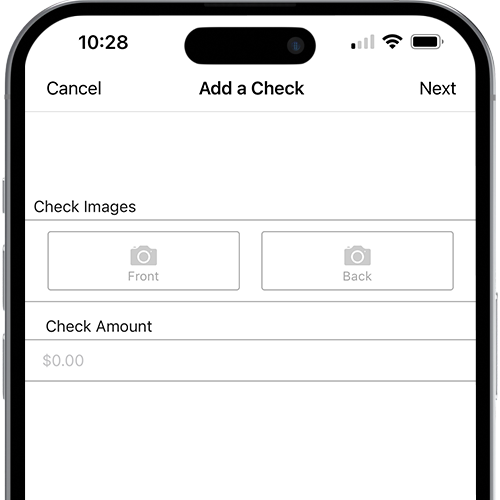
Sign & capture images
Sign the back of your check and capture an image of the front and back. Follow the prompts in the app!
-
Verify & confirm
Enter the amount of the check and follow the screen prompts to choose when you want your money.
FAQs
-
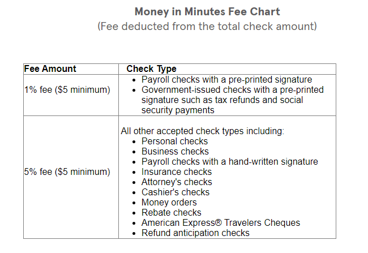
If you select Money in Minutes, money from your check can be available within minutes for a fee of 1% on payroll or government checks with preprinted signatures or 5% on other checks. A $5 minimum fee applies to all Money in Minutes transactions and there is a $20 check minimum. See the applicable Agreement at serve.com/legal for more detail.
If you select Money in Days, money from your check can be available in 10 days with no fee, if the check is not returned unpaid within the 10-day period. If your check is returned unpaid within the 10-day period, money will not be added into your account.
-
If you choose Money in Minutes your money is generally available within 3-5 minutes but can take up to one hour. There is a fee for this.
If you choose Money in Days, your money will be available 10 days from the time you submit your check, provided your check is approved and it is not returned unpaid within the 10-day period.
-
If you selected Money in Minutes and your check is approved, you will then be prompted to write “VOID” on the front of your check and submit an additional picture. Do not write “VOID” until you are prompted in the app.
If you selected Money in Days, you will not be prompted to write “VOID” on the check and submit an additional picture. Once your funds have cleared, you can dispose of the check as you see fit.
-
All checks submitted by Mobile Check Capture are subject to Ingo Money’s review for approval. Ingo Money may be unable to approve a check and cannot always tell you exactly why a check is declined; however, below are some examples of reasons a check may be declined:
The check was not written to you, as your name appears on your Serve account.
The check was not endorsed.
The amount of the check is more than $5,000.
The amount of the check will cause you to exceed the applicable limits.
One or both of the check images are illegible. Please refer above to our tips for how to take a good image of your check.
The check is not an acceptable check type. Please refer above to our list of generally accepted check types.
A properly voided image of the check was not received. If you have issues with submitting your voided check image, please call Ingo Money Customer Service at (229) 276-3990 for assistance.
The check was written from a closed or compromised account.
If your check is declined, you will be notified in the Serve app and by the primary email associated with your Serve account. Money will not be added to your Serve account and no fee will be assessed.
-
Check images can be rejected due to a poor image capture. When taking images of your check please ensure the following:
The check is on a solid-colored background, front-side up.
Ensure none of the check information is covered up and that the room is brightly lit.
Ensure there are no shadows on the check.
Be sure the check fits just inside the guidelines.
The check is not wrinkled in any way.
-
Checks added via Money in Days must be in an amount between $0.01 and $5,000. Checks added via Money in Minutes must be in an amount between $20 and $5,000. All checks added via Mobile Check Capture are subject to a $5,000 per day and $10,000 per month limit.
-
You must be a Serve main accountholder to use this feature. Subaccount users cannot add money with Mobile Check Capture at this time. Note: As of 2/13/2022, Mobile Check Capture is not available for use in the state of New York.
-
All checks must be made out to you, endorsed by you, and drawn on a bank account in the United States or a U.S. territory.
Eligible checks include, but are not limited to:
Payroll and government checks with a pre-printed signature (Example: Tax Refund)
Business checks
Payroll checks with a handwritten signature
Personal checks
Insurance checks (settlement checks)
Attorney checks (settlement checks)
American Express Traveler's Cheques
Cashier’s checks
Money orders
Rebate and refund anticipation checks
Please note that the following check types are generally not accepted:
Checks you write to yourself
Conditional endorsement checks
Counter and starter checks
Credit card checks
Customer appreciation certificates
Gift certificates
Checks that are post-dated
Warrants
Traveler's checks not issued by American Express
Checks that are not made out to you
-
You can reach out to Ingo Money directly by contacting Ingo Customer Service at (229) 276-3990 or by sending an email to [email protected].