
Mobile Money Transfers
Easily transfer money to another person through the Serve Mobile App1 or through other mobile payment apps like Venmo, Cash App, or PayPal.
Transferring money is simple with Serve
Use the Serve Mobile App to quickly send or receive money from other Serve cardholders with just a few clicks. See below for more details.
Easily connect your Serve card to another mobile payment app
You can add your Serve card to other mobile payment platforms to conveniently transfer funds to load your Serve account.
Follow the steps in the FAQs to link your card. As the process is subject to change, please confirm the latest information within each app.
FAQs
-
You may be able to transfer money from an external bank account or money app (like Venmo or PayPal) to your account by initiating a transfer from your external bank account or money app. You are not able to initiate this type of transfer from your Serve Account. We do not charge a fee for this, but the initiating bank or app may charge a fee. Check with them for details on availability, fees they may charge, and timing, as well as instructions for how to complete the transfer.
-
Open the PayPal app and select Wallet from the bottom bar.
Look for Banks and cards and click the + symbol. Select Bank Account or Debit and credit cards from the menu.
Enter in the account and routing numbers or the card information, respectively.
You will now see your account / card under Banks and Cards.
You can use your linked account or card to pay people or businesses through PayPal or to add funds to your PayPal balance.
To send funds from PayPal to your Serve Card, go to Payments and under More options, click on To a bank account or Debit card deposit.
This will open up a third-party called Xoom in the PayPal app, where you can transfer funds out of your PayPal balance for a fee. See app for details.
-
You can send money to anyone with the same type of Serve account you have. For example, if you have the Serve® Pay As You Go Visa® Prepaid Card, you can send money to other Serve® Pay As You Go Visa® Prepaid Card Cardholders, but not to or Serve® Bank Accountholders.
You may send money to other Serve accountholders once you have activated your personalized Serve card and verified your email.
If you send money to someone who is not a Serve accountholder, then that person will receive email instructions on how to register for a Serve account. Once they set up their Serve account, they can begin to send and receive money.
Follow these steps to send money:
Log in to your Serve account.
Go to Money Out then select Send Money.
Select the contact you would like to send money to or click or tap on Add contact to add a new contact.
Enter the amount you’d like to send and select Send.
We will notify you via email when the money you sent has been accepted or cancelled.
-
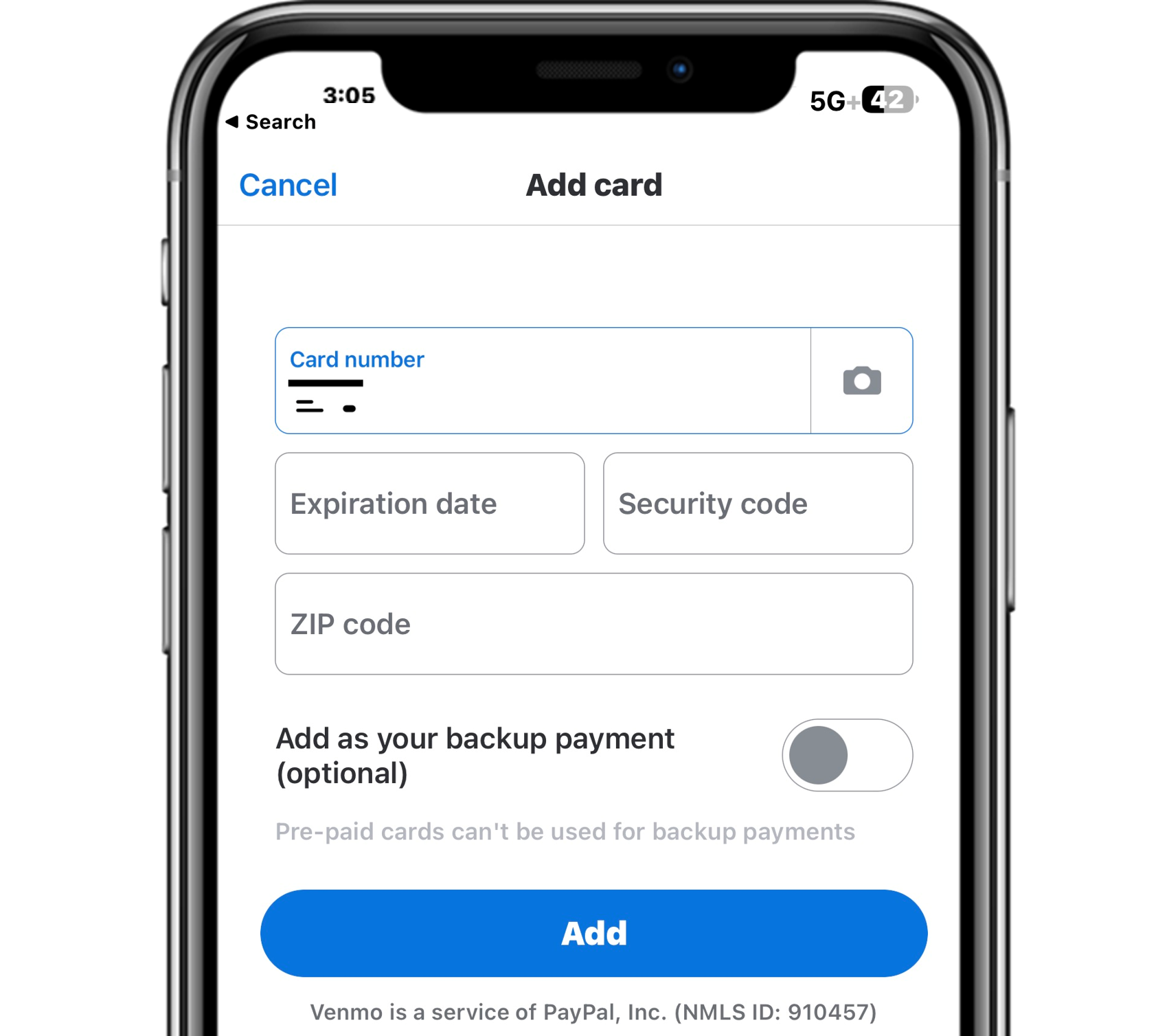
Open the Venmo app and under the Me section, click on Banks and Cards and click Add a bank or card.
Add in your account and routing numbers to link your Serve card as a bank account or enter your debit card info to link it as a debit card.
Linked Debit Card:
You can add your Serve card to your Venmo account and use it to pay people or businesses through Venmo or to add funds to your Venmo balance.
Linked Bank Account:
You can add your account and routing numbers for your Serve® Bank Account to your Venmo account and send money from your Venmo account to your Serve Bank® Account.
-
Open Cash App and select Your Account by clicking on the photo bubble in the top right corner.
Under Accounts & Settings, you will see options to link a debit card and/or bank account. You may only have one debit card and bank account added at a time – to add your Serve card, you must remove any linked debit cards or bank accounts.
Linked Debit Card:
a. You can add your Serve card to your Cash App account and use it to pay people or businesses through Cash App or to add funds to your Cash App balance.Linked Bank Account:
a. You can add your account and routing numbers for your Serve® Bank Account to your Cash App account and send money from your Cash App account to your Serve® Bank Account.